Supplying Tokens to Earn Yield
Supply any supported ERC20 token to a VII Finance vault and earn interest paid by borrowers. There is no impermanent loss; your deposit is a straightforward lending position, similar to supplying on Aave or Euler.
When to use this: You hold USDC, WETH, or another supported token and want to put it to work earning yield without actively managing a position.
Supplied tokens are lent to borrowers. As with any lending protocol, there is smart contract risk and, in extreme market conditions, liquidity risk. Only supply what you can afford to keep locked.
Prerequisites
- Wallet that supports EIP-7702 connected to VII Finance (Here's the list of all wallets that are supported)
- The token you want to supply in your wallet
- Enough native gas token (ETH on Ethereum/Unichain) to cover transaction fees
Step 1: Open the Markets Page
Navigate to the Markets page using the top navigation bar.
You will land on the Create Positions page with the Tokens tab active. This lists all available lending vaults with their current Supply APY, Total supplied, and Total Borrowed.
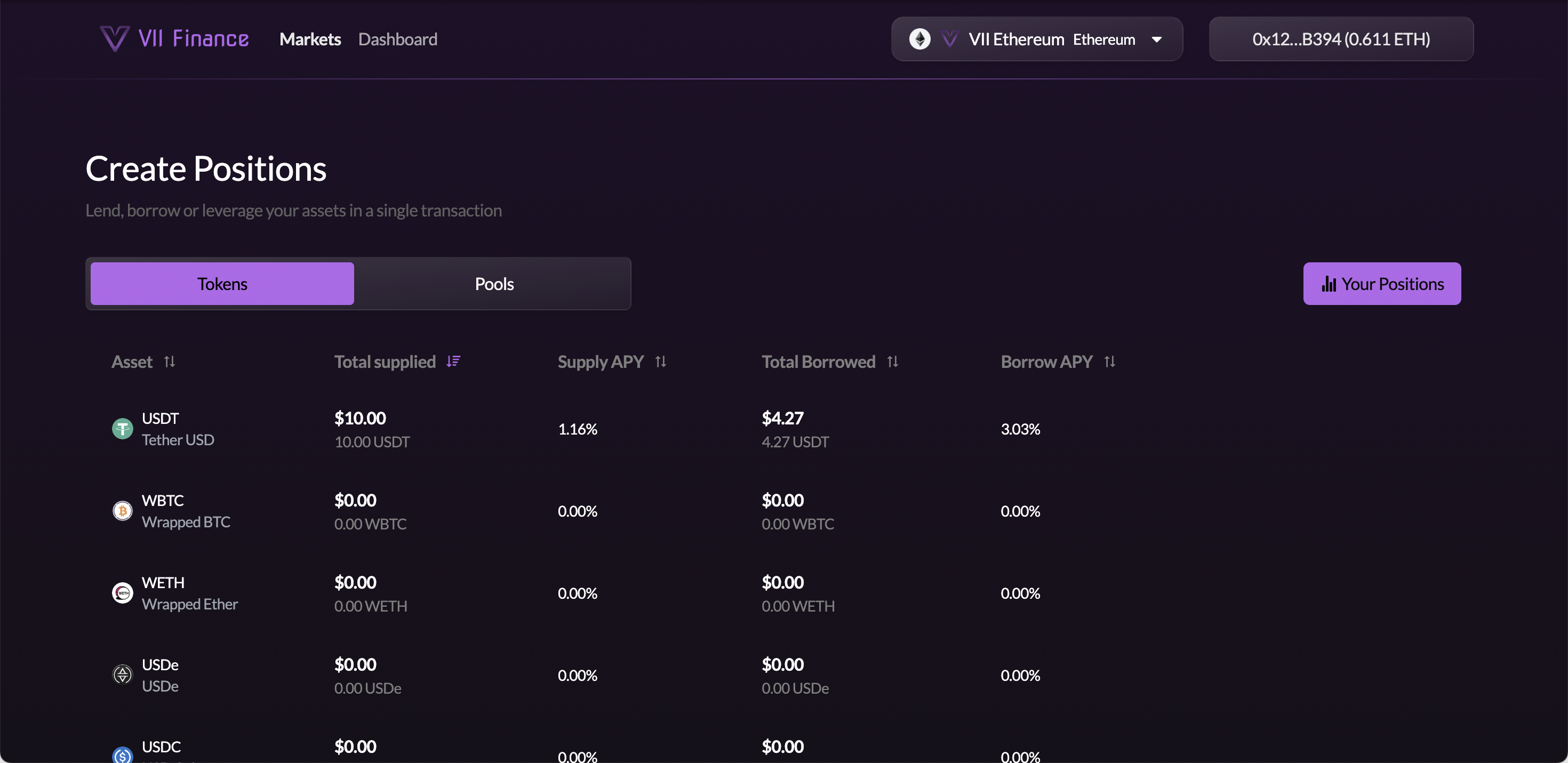
The table columns are:
- Asset: token icon, ticker, and full name
- Total supplied: total USD value and raw token amount currently deposited
- Supply APY: annualised interest rate you earn as a lender
- Total Borrowed: how much has been borrowed against this vault
- Borrow APY: interest rate borrowers pay (your yield source)
Step 2: Find the Vault You Want to Supply To
Browse the table to find the asset you want to lend. Click any column header to sort. Sorting by Supply APY is a quick way to find the best-yielding vault.
The Supply APY fluctuates based on utilisation. Higher utilisation means borrowers are actively using the vault, which drives a higher yield for suppliers.
Hover over the row for the asset you want to supply. Three action buttons will appear on the right side of the row:
- Supply: opens the supply form for this vault
- Borrow: opens the borrow form (not needed here)
- Leverage: opens the leverage form (not needed here)
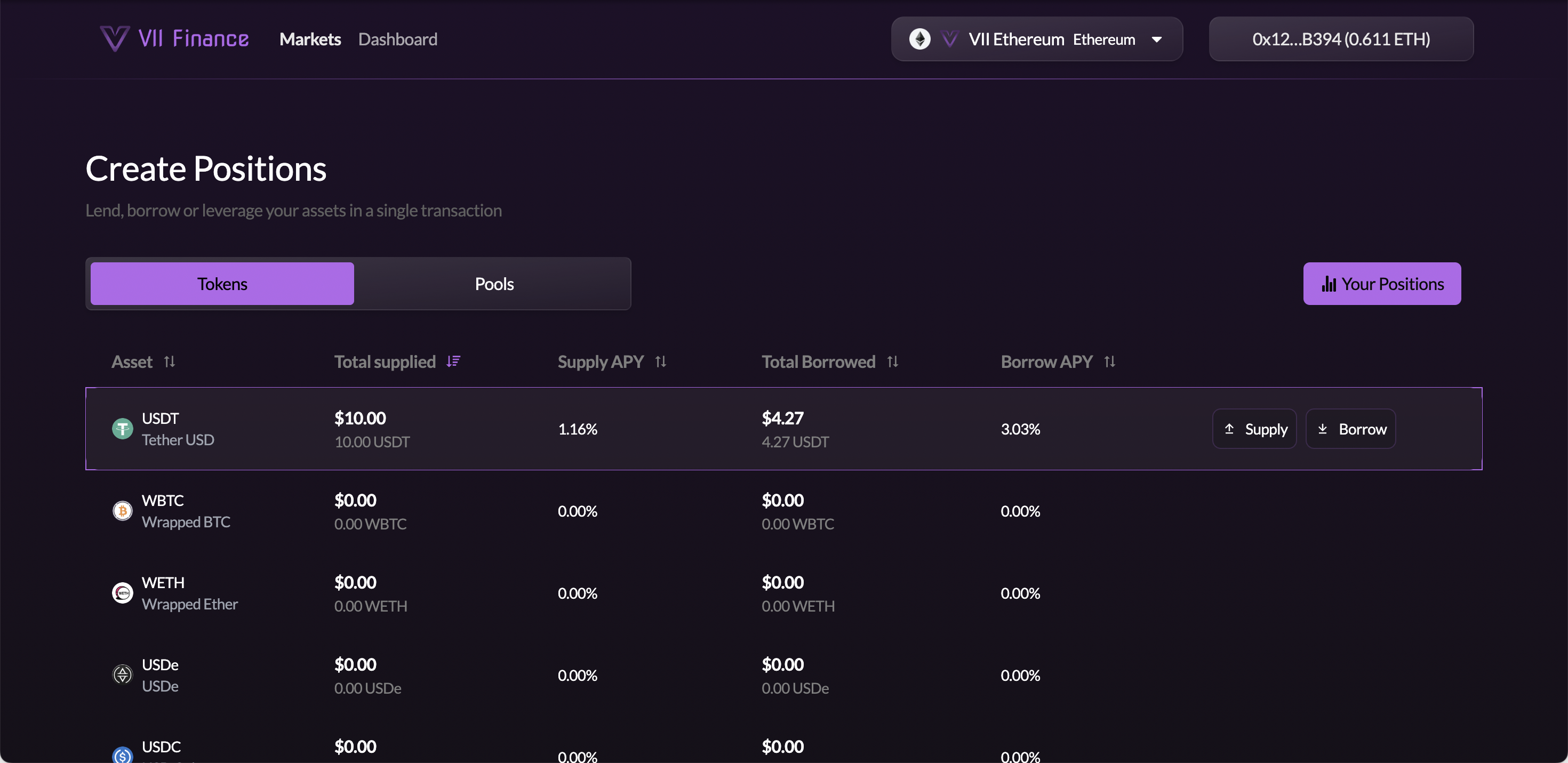
Click Supply.
Step 3: Enter Your Supply Amount
You are now on the Create Position page. The right panel will have the Supply tab active (there are also Borrow and Leverage tabs).
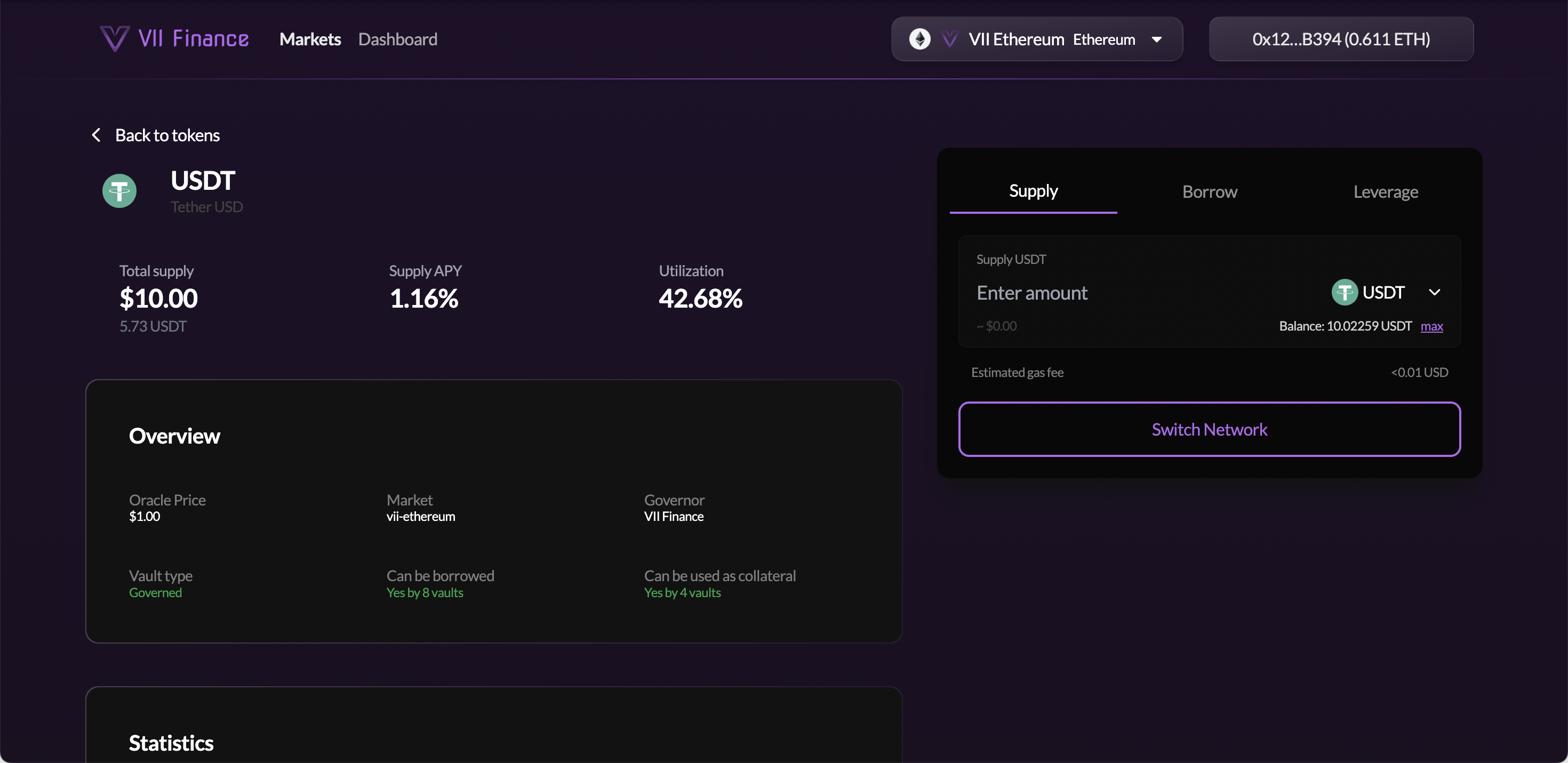
The left panel shows vault information:
- Total supply, Supply APY, and Utilization: key stats at a glance
- Overview: Oracle Price, Market, Governor, Vault type, borrowability, and collateral eligibility
- Statistics: Total Supply, Total Borrowed, Available Liquidity, and both APYs
- Risk Parameters: Supply Cap, Borrow Cap, and bad debt socialisation settings
On the right panel, enter the amount you want to supply in the Enter amount field. The USD equivalent updates in real time below the input.
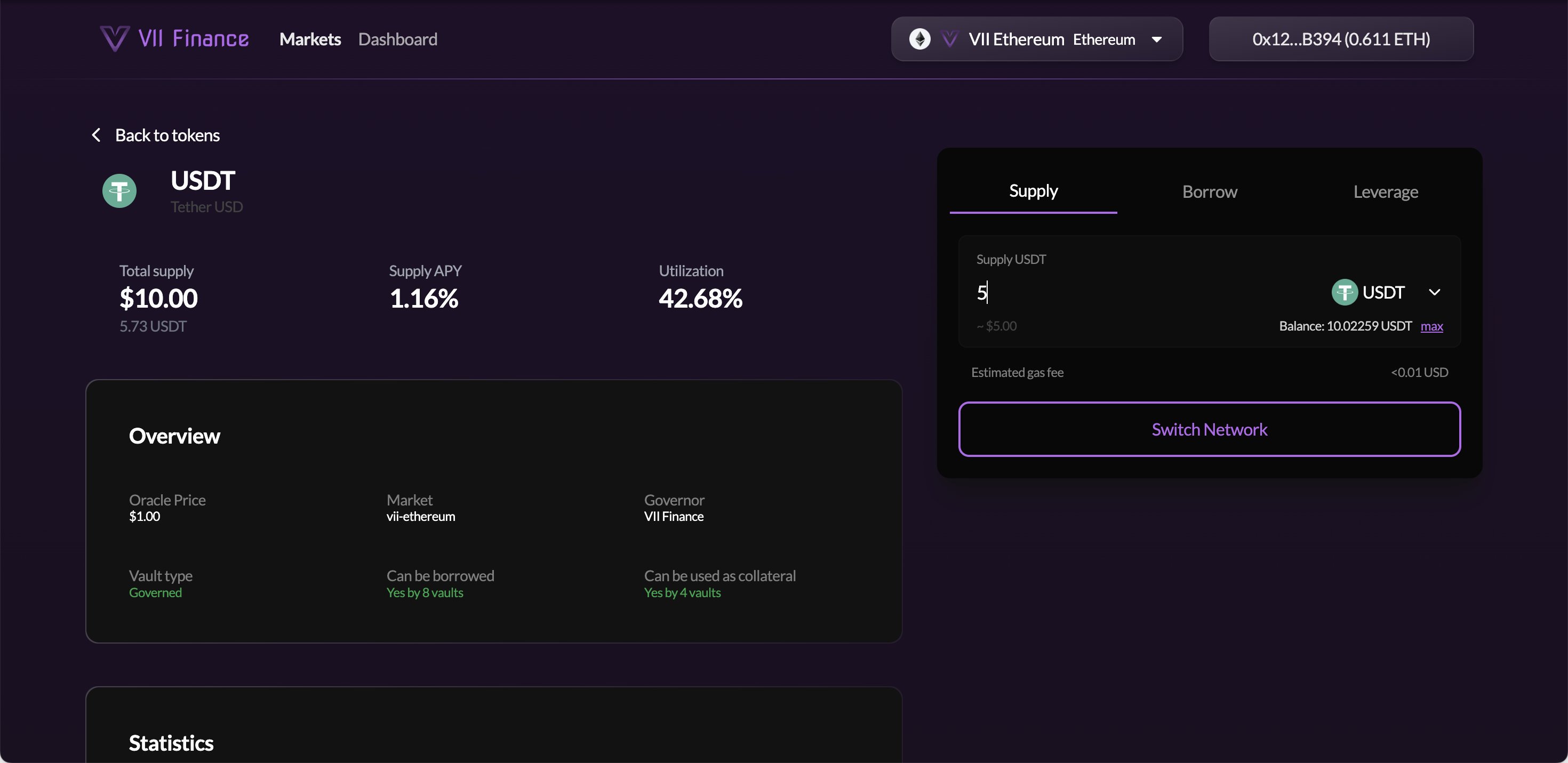
Click max next to your balance to fill in your full available balance.
The Supply Cap is shown in the Risk Parameters section of the left panel. If the vault is near its cap, the max shortcut will be limited to the remaining capacity rather than your full balance.
Step 4: Confirm the Network
If your wallet is connected to the wrong chain, a Switch Network button will appear instead of the deposit button. Click it and approve the network switch in your wallet popup.
Once on the correct network, the submit button becomes active.
Step 5: Submit the Transaction
Click the deposit button. Your wallet will prompt you to:
- Approve the token spend (only required when the protocol's approved allowance is less than the amount you're depositing)
- Confirm the deposit transaction
Both steps may be bundled into a single wallet prompt if your wallet supports EIP-5792 batch calls. The approval is for the exact deposit amount. If you supply a larger amount in a future transaction, you'll be asked to approve again.
Your tokens are deposited into an Euler V2 vault and held in your Euler sub-account (shown as #0, #1, etc. in the metrics panel). Sub-accounts are isolated positions, so you can have multiple supply and borrow positions on separate sub-accounts simultaneously.
After the transaction confirms on-chain, your supply position is active.
Viewing and Managing Your Position
Go to Dashboard in the top navigation. You will land on the Your Portfolio page. Under the Supply tab you will see a card for each of your supply positions showing:
- Token name, market, and account
- Supplied Amount: raw token amount currently deposited
- Position Value: current USD value of your deposit
- APY: live annualised yield
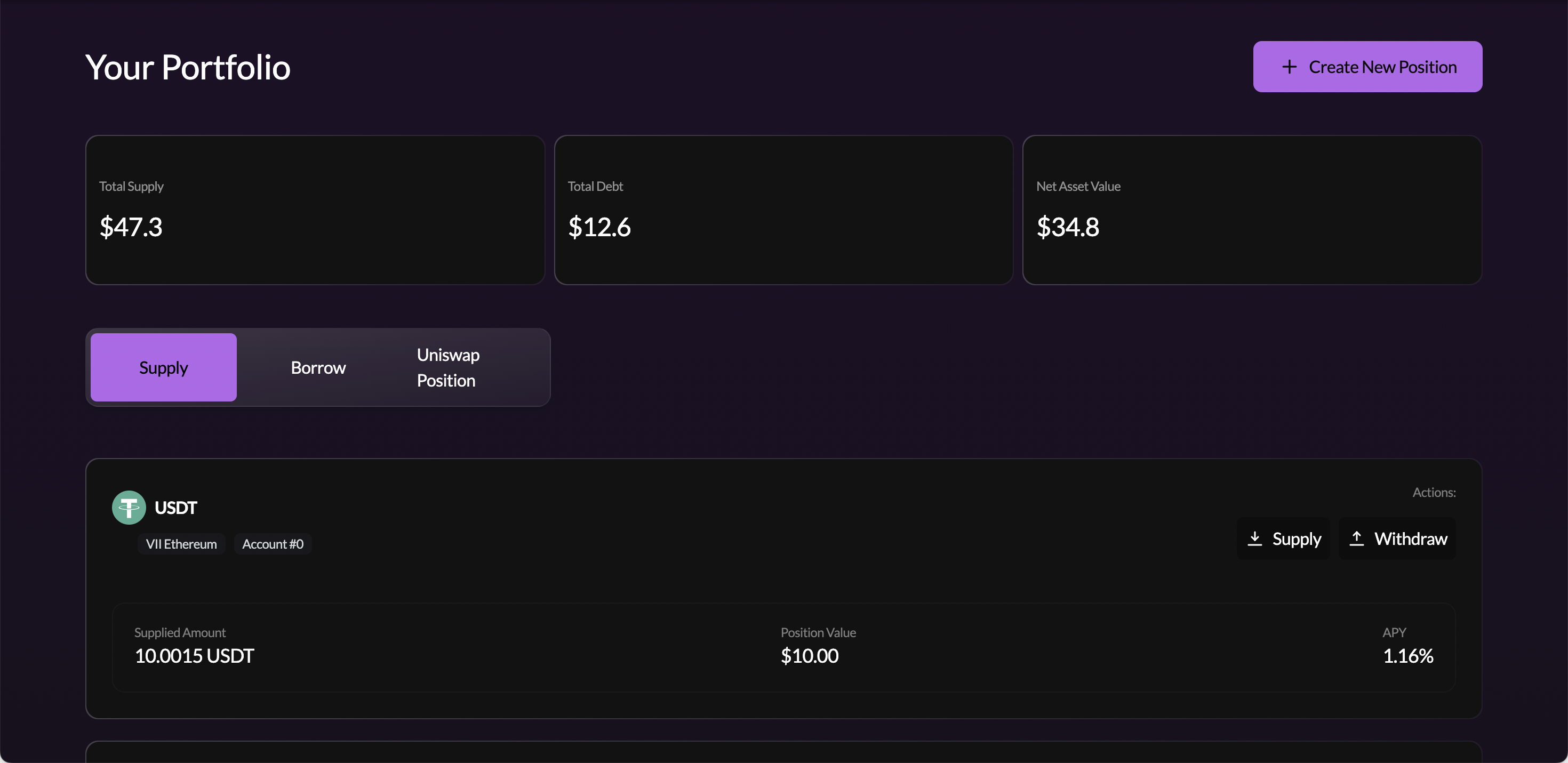
From each card you can:
- Supply: deposit additional tokens into this vault
- Withdraw: withdraw part or all of your supply
Withdrawals depend on available liquidity in the vault. If utilisation is very high, you may need to wait for borrowers to repay before withdrawing the full amount. Check Available Liquidity in the Statistics section of the vault page.