Borrowing Against Token Collateral
Use an ERC20 token you already hold as collateral to borrow a different token without selling your original asset. A common example: deposit WETH as collateral and borrow USDT0 to access liquidity while keeping your ETH exposure.
When to use this: You hold a token you don't want to sell but need liquidity in another asset. This works like borrowing on Aave or Euler.
If your collateral value falls enough that your Loan to Value(LTV) ratio reaches the liquidation threshold, your collateral can be partially liquidated. Monitor your position actively, especially during volatile market conditions.
Prerequisites
- Wallet that supports EIP-7702 connected to VII Finance (Here's the list of all wallets that are supported)
- The token you want to use as collateral in your wallet (e.g. WETH)
- Enough native gas token for transaction fees
Step 1: Open the Markets Page
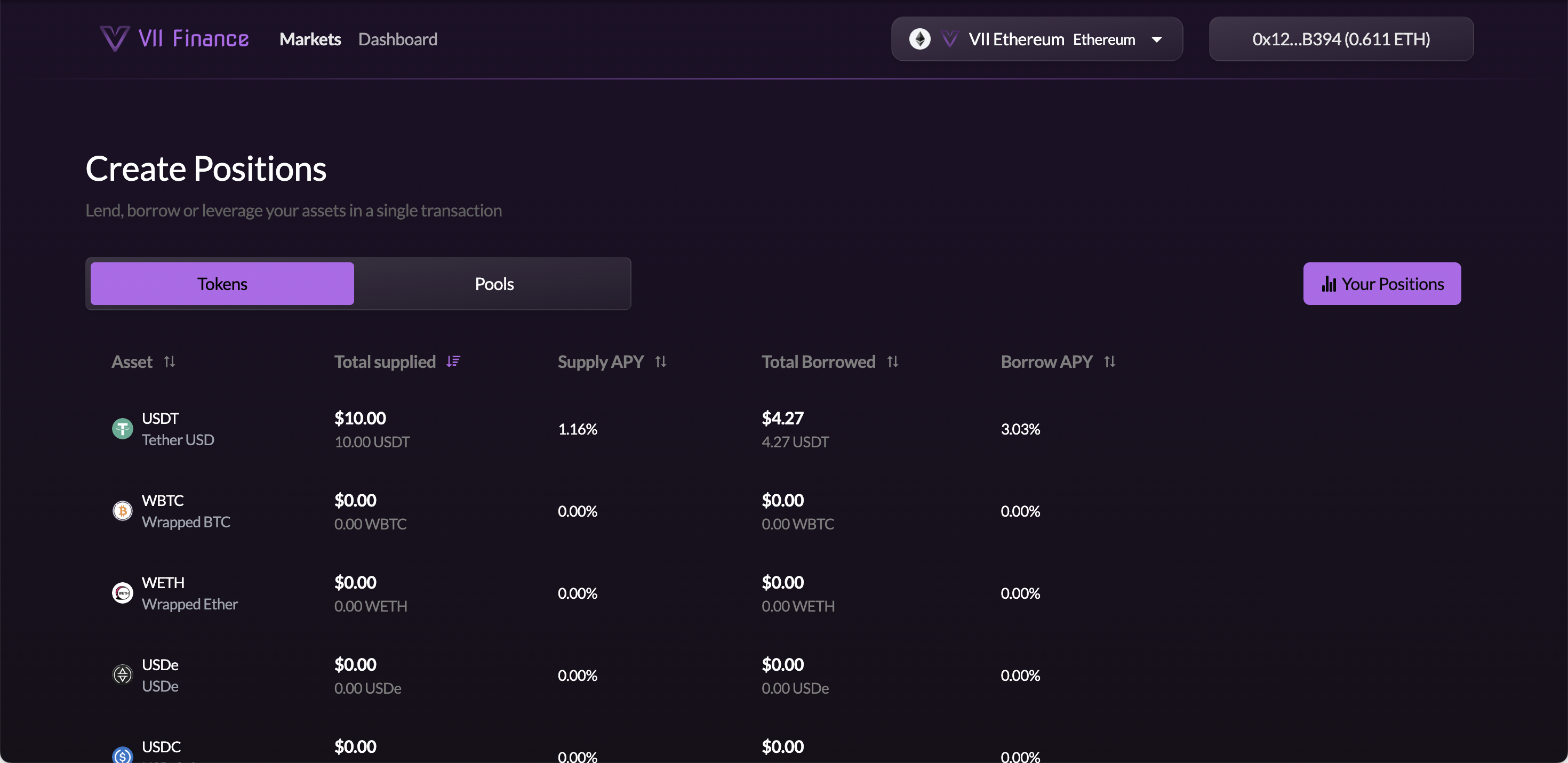
Navigate to Markets using the top navigation bar. You will land on the Create Positions page with the Tokens tab active.
Step 2: Find Your Collateral Token and Click Borrow
Browse the table for the token you want to deposit as collateral (e.g. WETH). When you click Borrow on a token row, that token becomes your collateral in the position.
Hover the row. Supply, Borrow, and Leverage buttons appear on the right side.
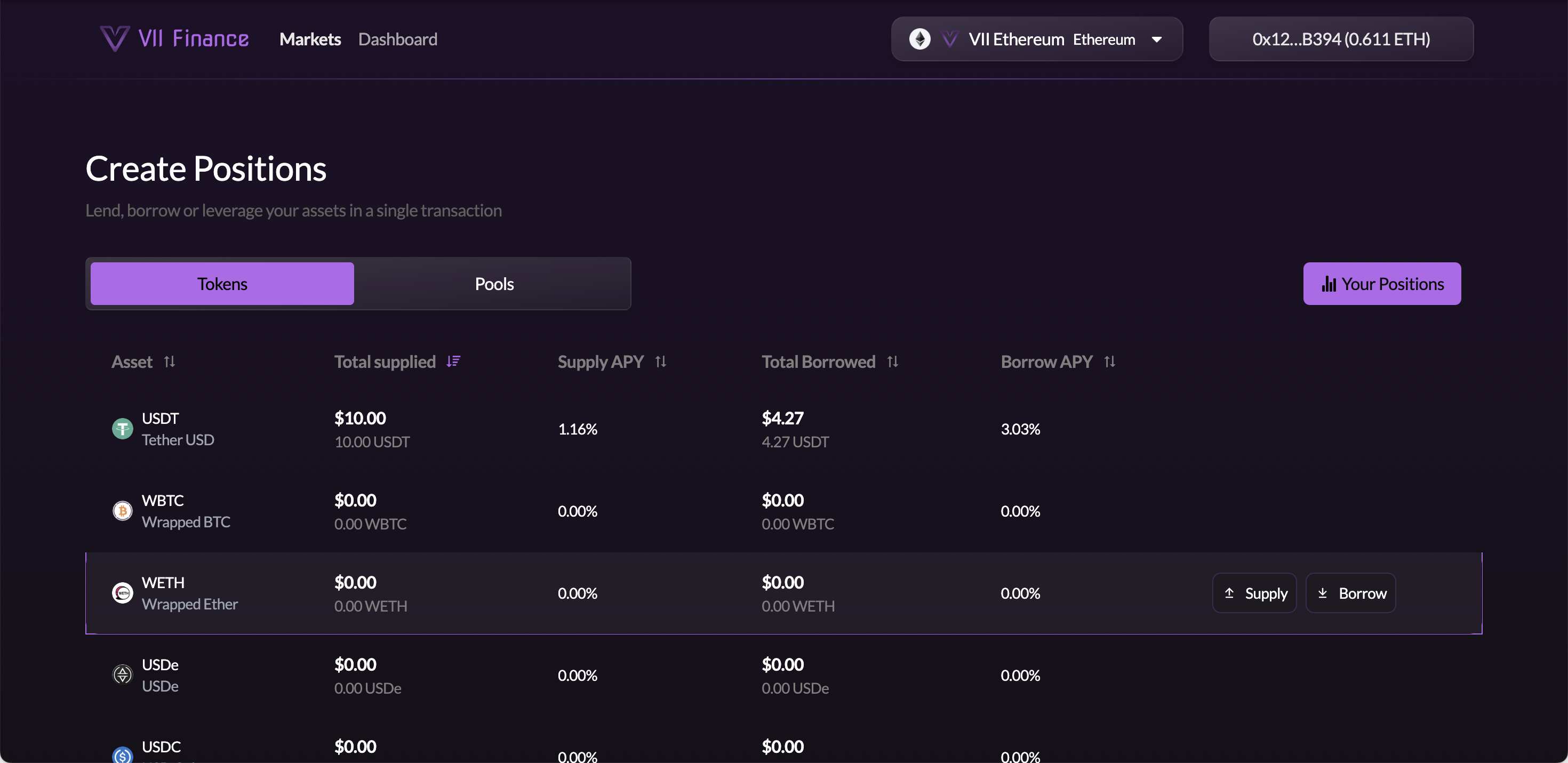
Click Borrow.
Step 3: Configure Your Position
You are now on the Create Position page with the Borrow tab active.
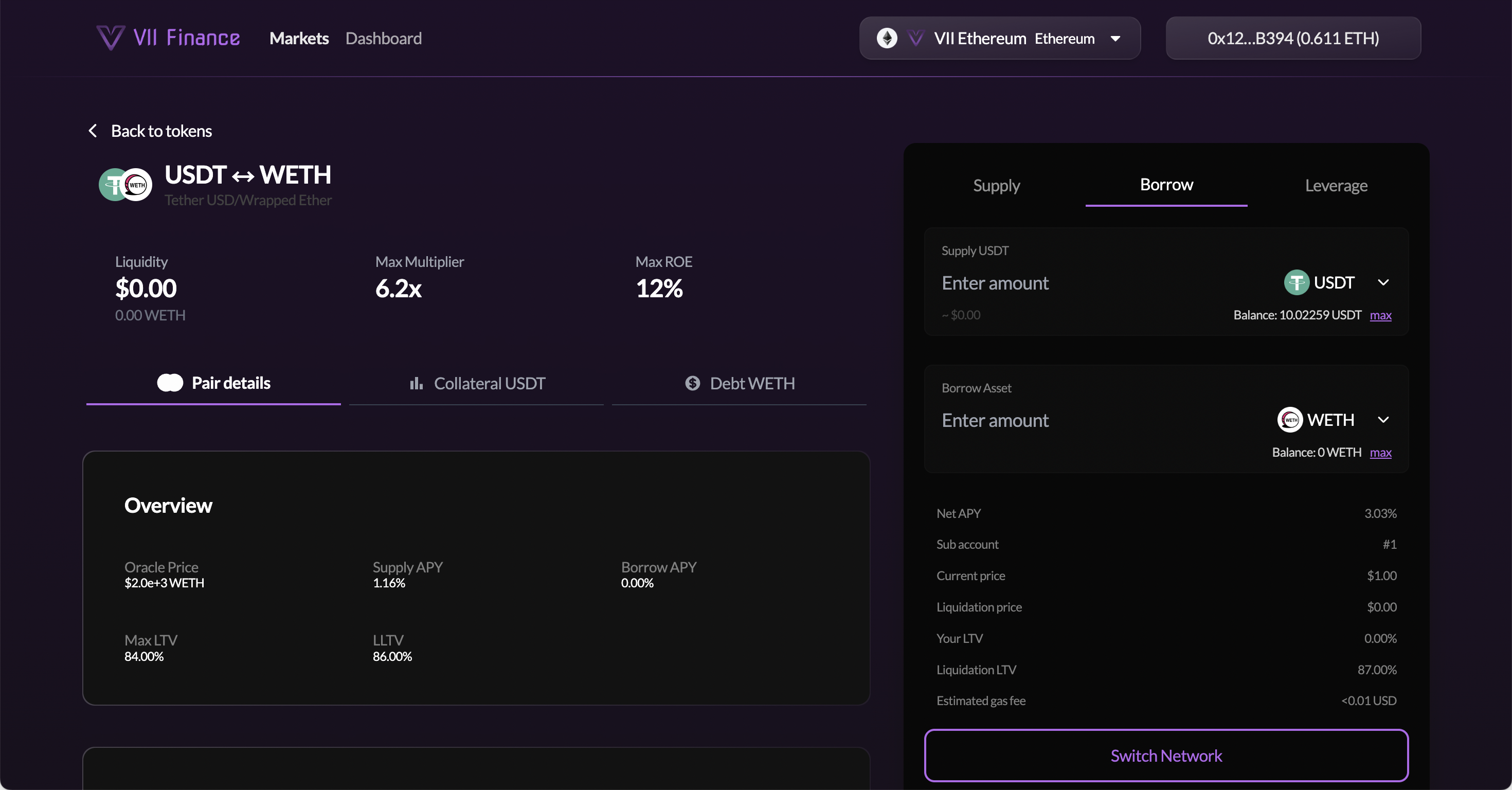
The right panel has two inputs:
- Supply [token]: the amount of collateral you are depositing (the vault token you navigated from)
- Borrow Asset [token]: the token you want to borrow and the amount
The left panel shows:
- Liquidity, Max Multiplier, Max ROE: at a glance vault stats
- Pair details tab: Oracle Price, Supply APY, Borrow APY, Max LTV, Liquidation LTV
- Collateral [token] tab: LTV limits and risk parameters for your collateral
- Debt [token] tab: borrow rate and liquidity for the debt token
Enter your collateral amount in the Supply field. Enter how much you want to borrow in the Borrow Asset field, or leave it and the form will accept just your collateral deposit.
Starting with a lower borrow amount (lower LTV) gives you more buffer against price movements before hitting your liquidation threshold. You can always borrow more later from the Dashboard.
Step 4: Review Position Metrics
As you enter amounts, the metrics panel updates in real time:
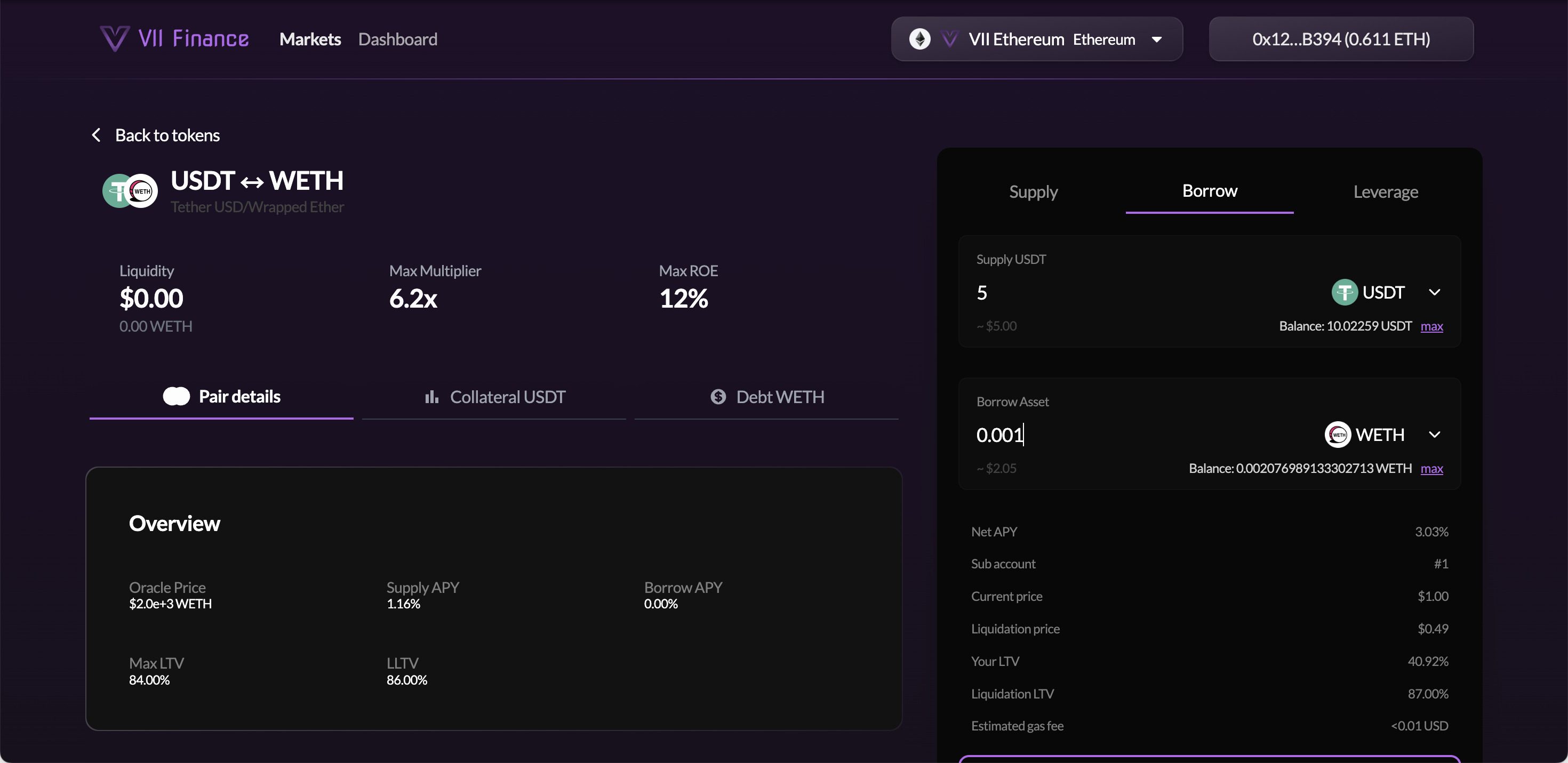
| Metric | What it means |
|---|---|
| Net APY | Net yield after subtracting borrow interest from any supply earnings |
| Sub account | The Euler sub-account that will hold this position (auto-selected) |
| Current Price | Live oracle price of your collateral asset |
| Liquidation Price | The collateral price at which your position would be liquidated |
| Your LTV | Current loan-to-value ratio. Shows how much you've borrowed relative to your collateral value |
| Liquidation LTV | The LTV cap at which your position can be liquidated |
| Estimated gas fee | Approximate transaction cost |
Note the Liquidation Price before confirming. The greater the gap between the current price and the liquidation price, the safer your position.
Step 5: Confirm the Network and Submit
If your wallet is on the wrong chain, a Switch Network button will appear. Click it and approve the switch in your wallet.
Once on the correct network, click the submit button. Your wallet confirms a batch transaction that deposits your collateral and borrows the requested amount in a single operation.
After confirmation, the borrowed tokens arrive in your main wallet. Your collateral is held in an Euler sub-account (a protocol-managed address derived from your wallet, shown as #0, #1, etc. in the Sub-account metric). You can have multiple independent borrow positions on separate sub-accounts simultaneously.
The ERC20 approval step approves the exact amount you are depositing, not an unlimited allowance. If you supply an amount in a future transaction, you will be asked to approve again.
Managing Your Borrow Position
Go to Dashboard in the top navigation. Click the Borrow tab to see all your borrow positions.
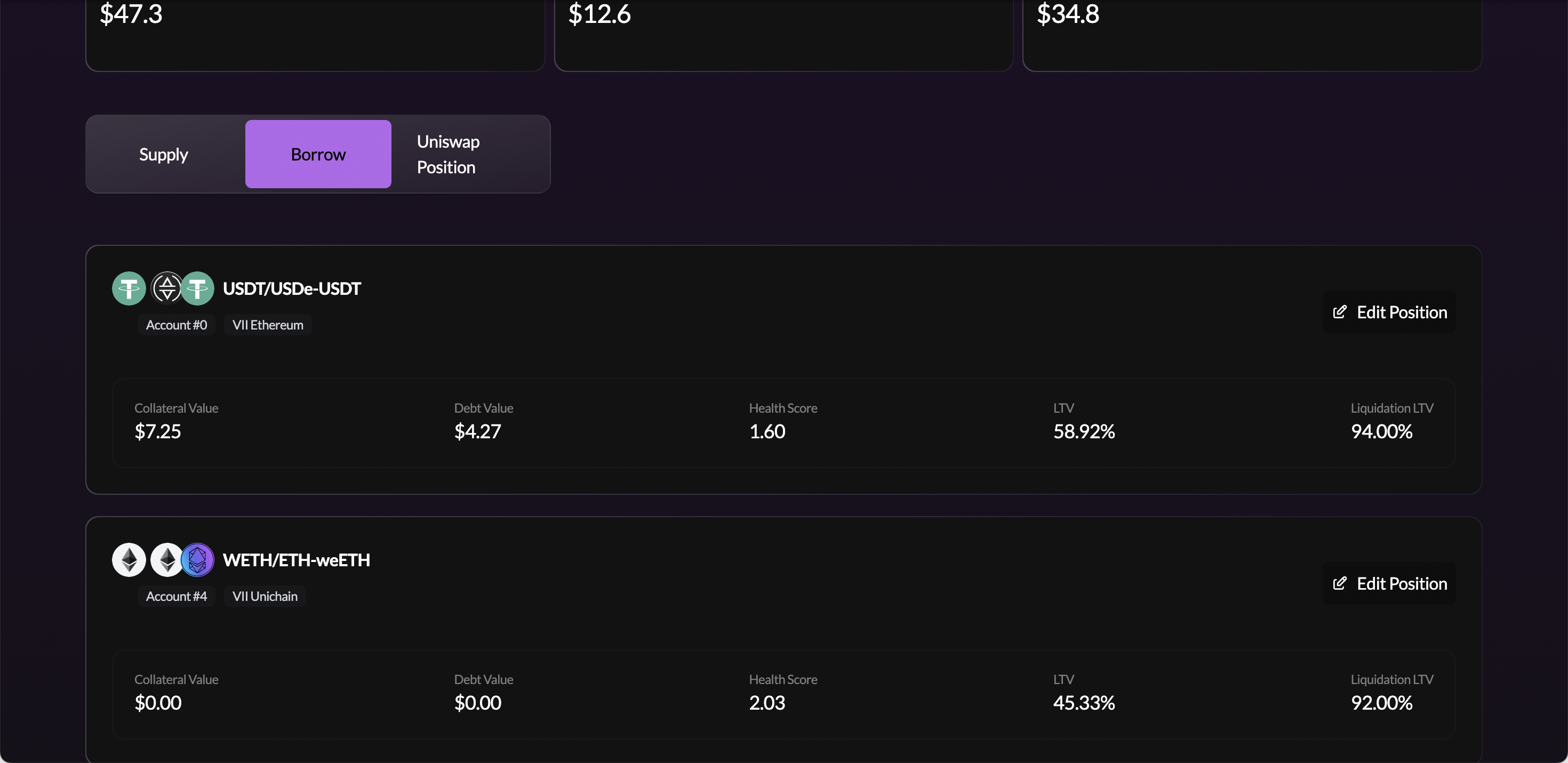
Each card shows:
- Token pair: collateral token / debt token icons and name, account, and network
- Collateral Value: current USD value of your deposited collateral
- Debt Value: current USD value of what you owe
- Health Score: how far you are from liquidation (above 1.0 = safe)
- LTV: current loan-to-value ratio
- Liquidation LTV: the threshold at which liquidation can be triggered
Click Edit Position to open the position detail page.
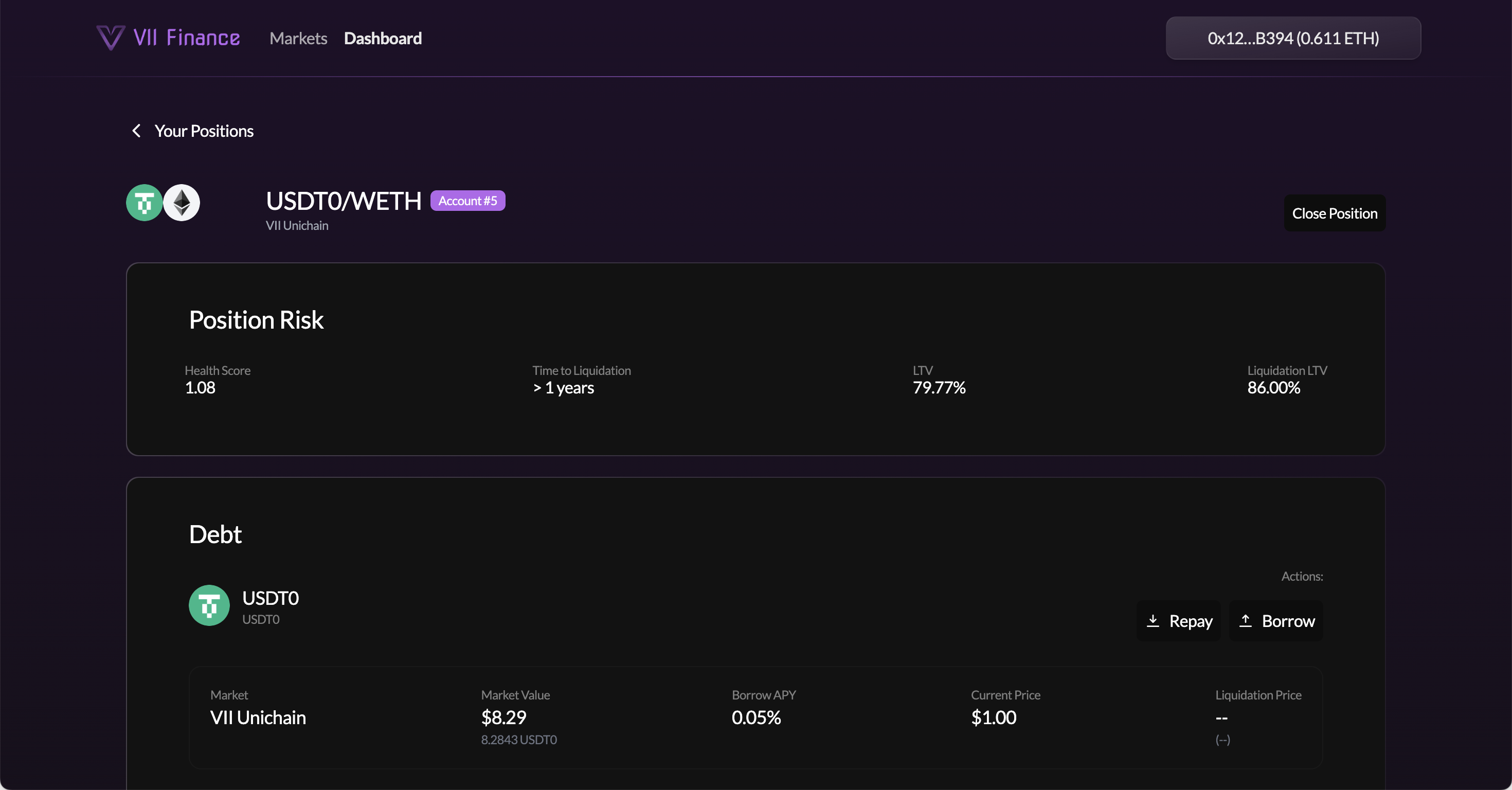
From this page you can:
Debt section:
- Repay: pay back debt to improve your health score
- Borrow: increase your debt (lowers health score)
Collateral section:
- Supply: add more collateral to improve your health score
- Withdraw: remove collateral (only available if health score allows)
- Disable: remove the asset from acting as collateral
The Health Score should stay comfortably above 1.0. If it drops close to 1.0 due to collateral price decline, repay debt or supply more collateral to restore safety margin.